# RikkaHub Guide
`RikkaHub` is an Android AI chat client that supports multiple OpenAI-compatible interfaces, suitable for daily AI conversations on mobile devices.
## Installation
RikkaHub currently supports Android only and **does not support iOS**.
You can install it with either method:
- Download the APK from the [RikkaHub download page](https://rikka-ai.com/download) and install it manually.
- Search for `RikkaHub` on Google Play and install it.
## Connect to GoRouter
RikkaHub can connect to GoRouter through its OpenAI-compatible provider support.
1. Follow [Create API Key](https://docs.gorouter.cc/en/docs/gorouter/create-apikey.md) to generate an API key.
2. Open `RikkaHub`, tap the left **sidebar**, and go to **Settings**.
3. Choose **Providers**, add a new provider, and select `OpenAI` as the type.
4. Fill in the following configuration:
```text
Provider type: OpenAI
Base URL: https://www.gorouter.cc/v1
API Key: your GoRouter API key
```
> **Note:** The Base URL must end with `/v1`. RikkaHub appends paths such as `/chat/completions` automatically, so do not add duplicate path segments at the end.
5. Save the provider, wait for the model list to refresh, then tap the icon on the **left** of Add Model and choose the models you need.
6. Return to the home page and select the model you just added to start chatting.
## Next Steps
After setup, you can chat with GoRouter-supported models directly in `RikkaHub`.
## Image Generation
> Prerequisite: You have completed GoRouter setup above and imported a model that supports image generation.
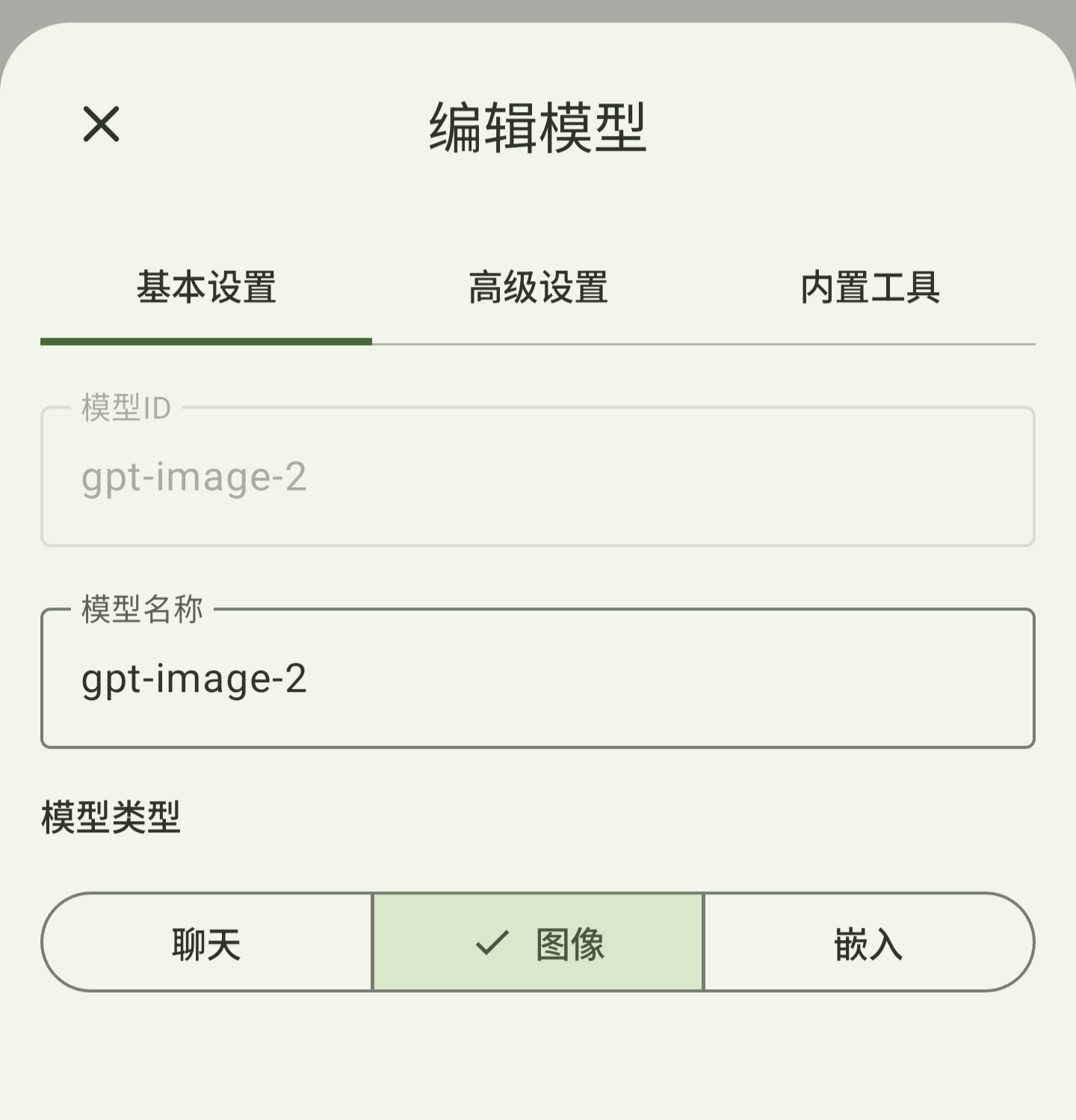
1. Go to **Settings -> Providers**, find the imported image-generation model, and change its **type** to **Image**.
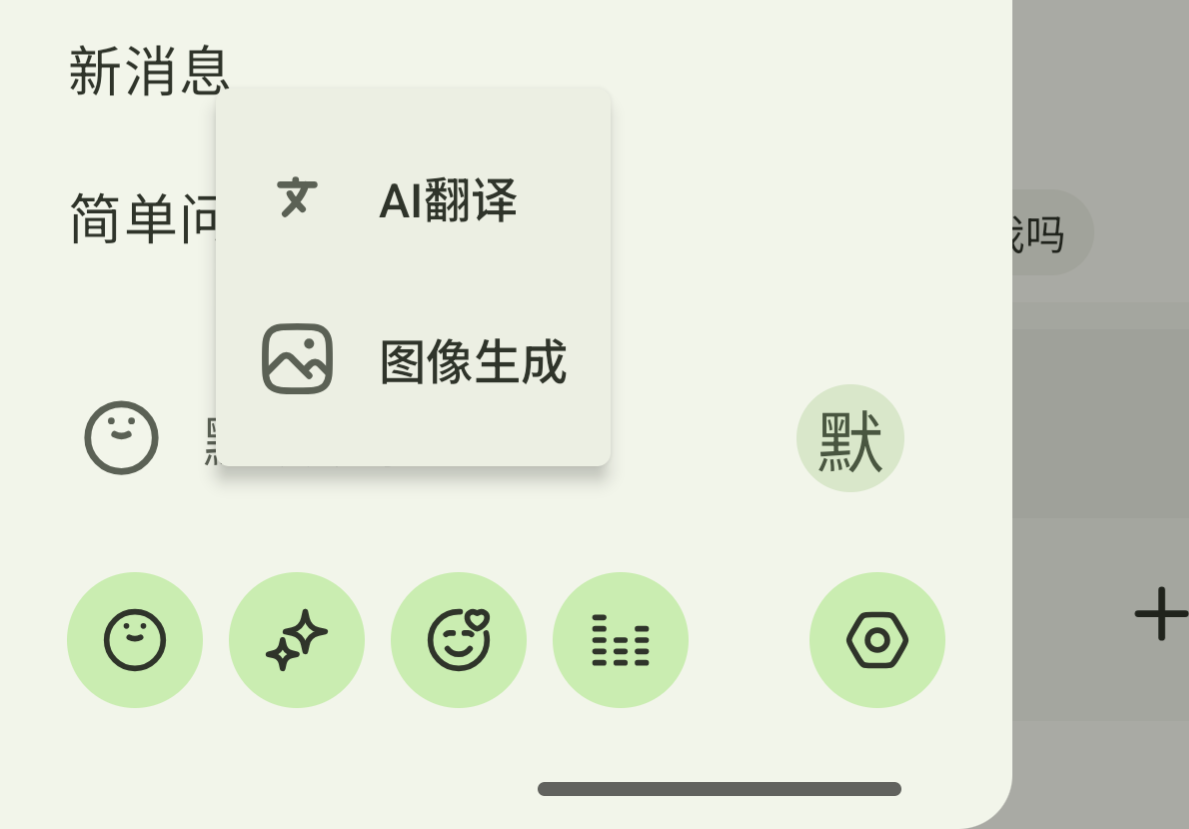
2. Return to the home page, tap the left **sidebar**, find **Image Generation** at the bottom, and open it.
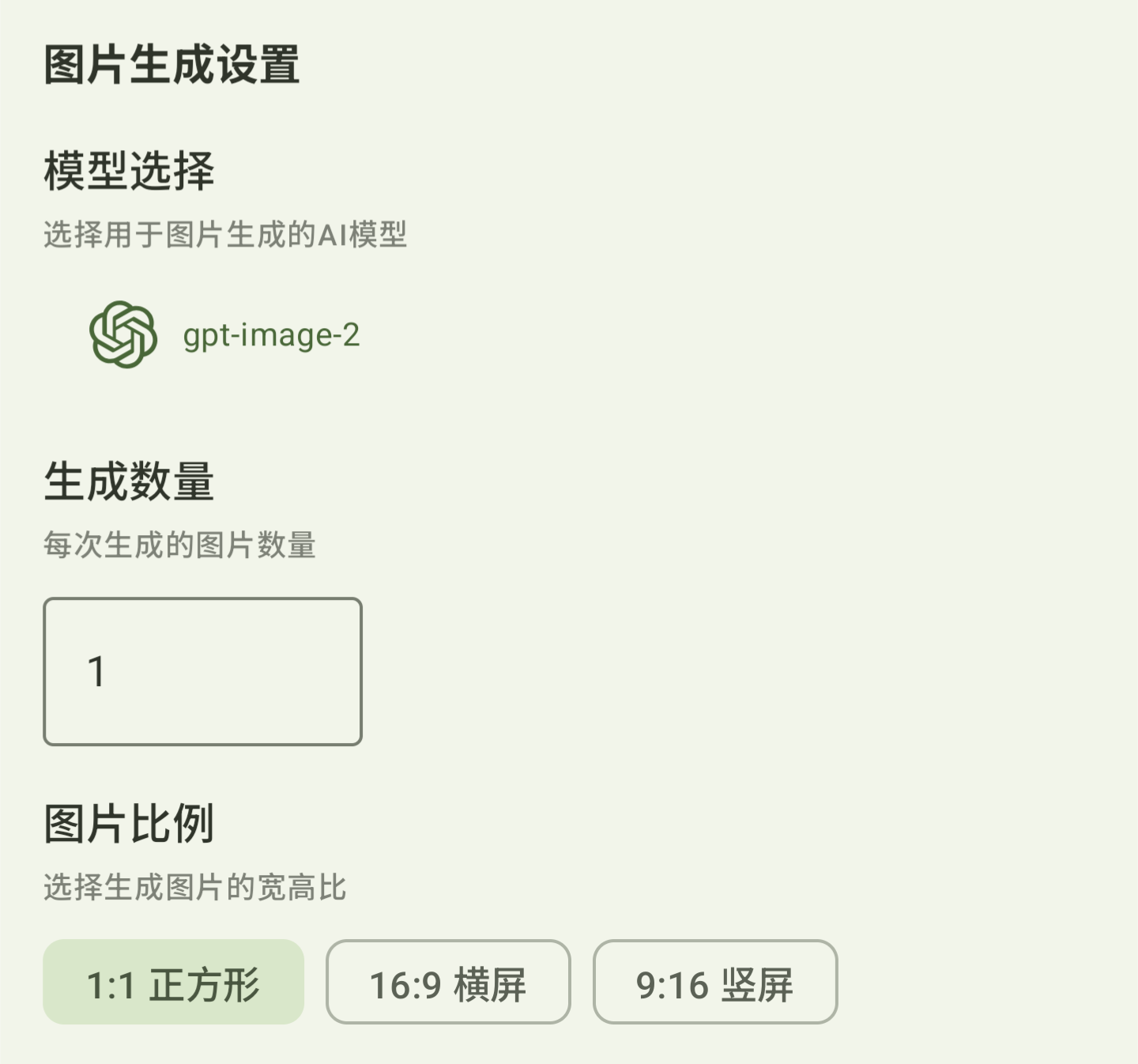
3. Select the configured model on the image-generation page and start generating images.
## More Related Content
- [Balance and Billing](https://docs.gorouter.cc/en/docs/gorouter/billing.md)