RikkaHub Guide
RikkaHub is an Android AI chat client that supports multiple OpenAI-compatible interfaces, suitable for daily AI conversations on mobile devices.
Installation
RikkaHub currently supports Android only and does not support iOS.
You can install it with either method:
- Download the APK from the RikkaHub download page and install it manually.
- Search for
RikkaHubon Google Play and install it.
Connect to GoRouter
RikkaHub can connect to GoRouter through its OpenAI-compatible provider support.
Follow Create API Key to generate an API key.
Open
RikkaHub, tap the left sidebar, and go to Settings.Choose Providers, add a new provider, and select
OpenAIas the type.Fill in the following configuration:
textProvider type: OpenAI Base URL: https://www.gorouter.cc/v1 API Key: your GoRouter API keyNote: The Base URL must end with
/v1. RikkaHub appends paths such as/chat/completionsautomatically, so do not add duplicate path segments at the end.Save the provider, wait for the model list to refresh, then tap the icon on the left of Add Model and choose the models you need.
Return to the home page and select the model you just added to start chatting.
Next Steps
After setup, you can chat with GoRouter-supported models directly in RikkaHub.
Image Generation
Prerequisite: You have completed GoRouter setup above and imported a model that supports image generation.
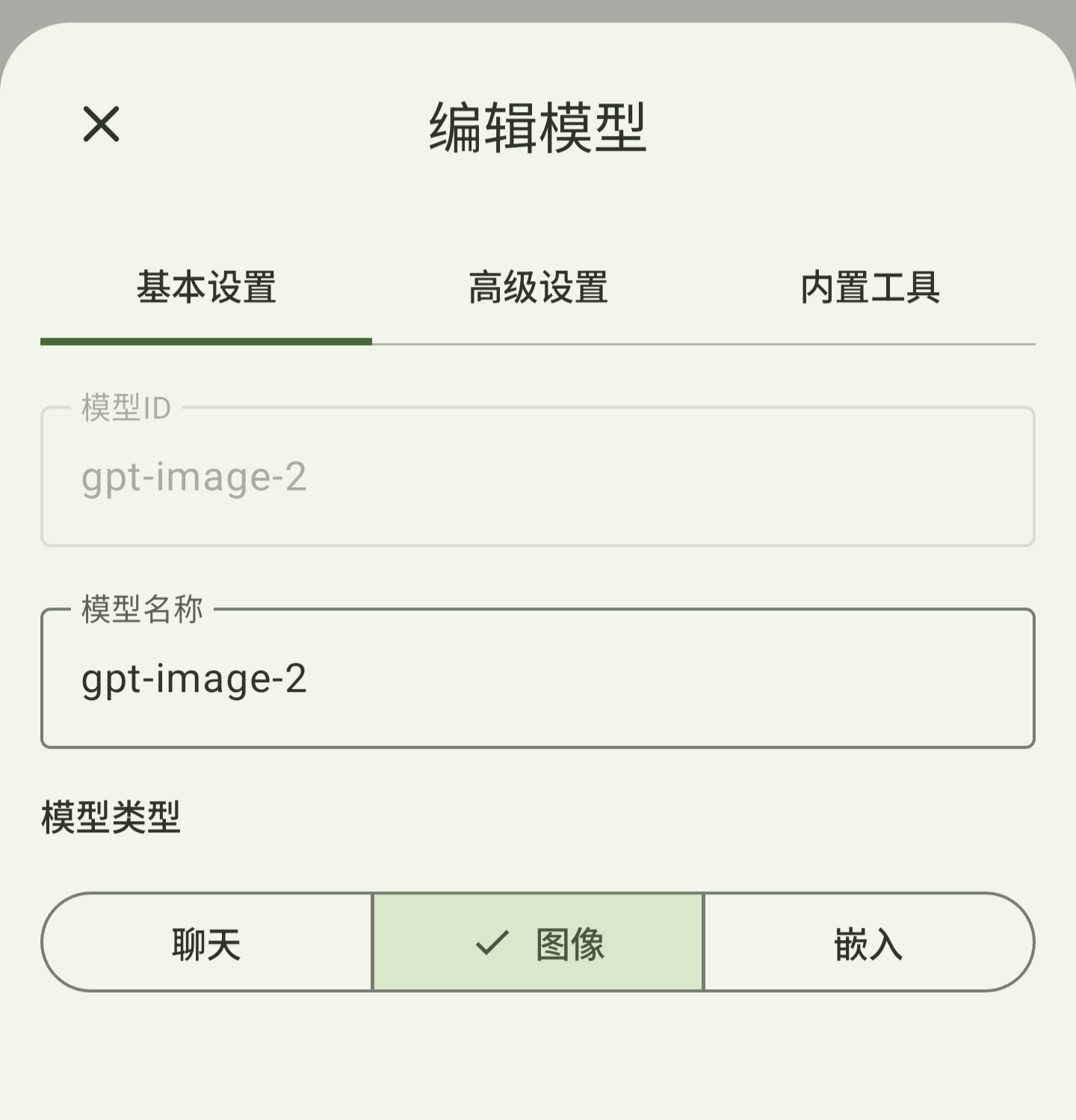
Go to Settings -> Providers, find the imported image-generation model, and change its type to Image.
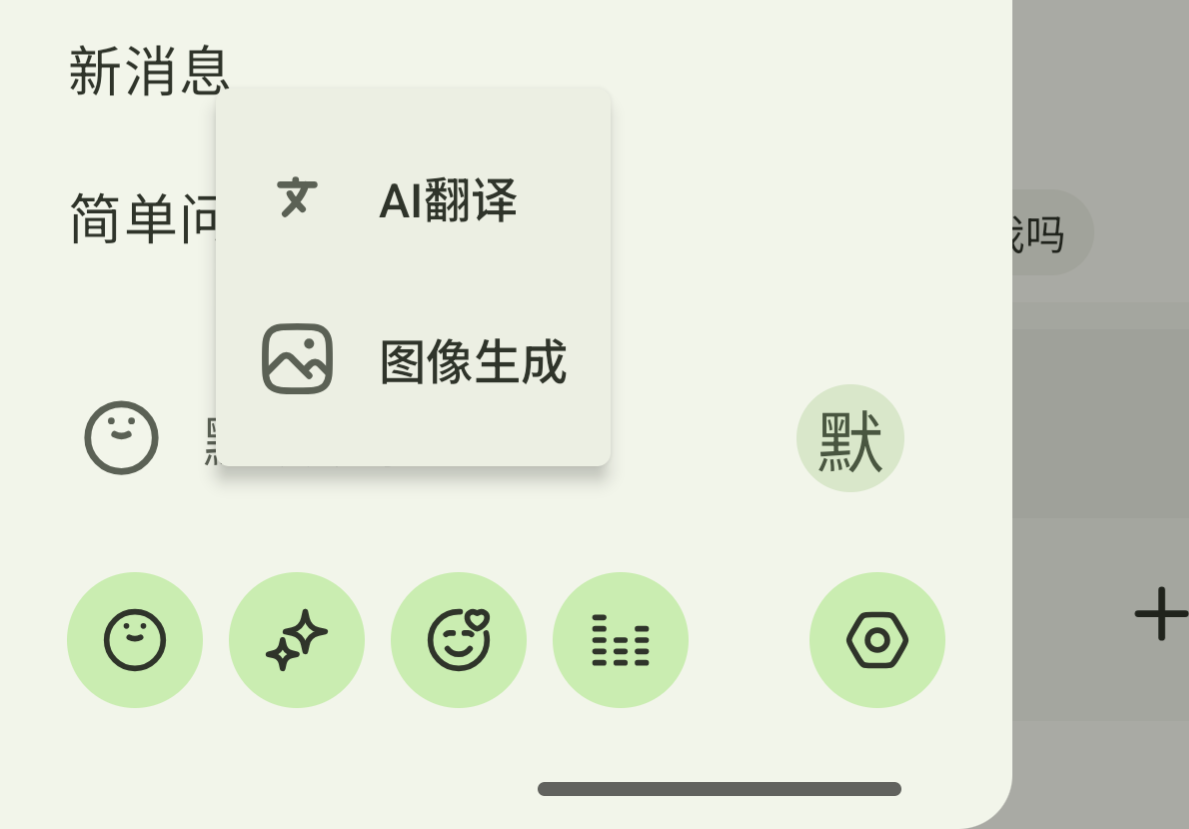
Return to the home page, tap the left sidebar, find Image Generation at the bottom, and open it.
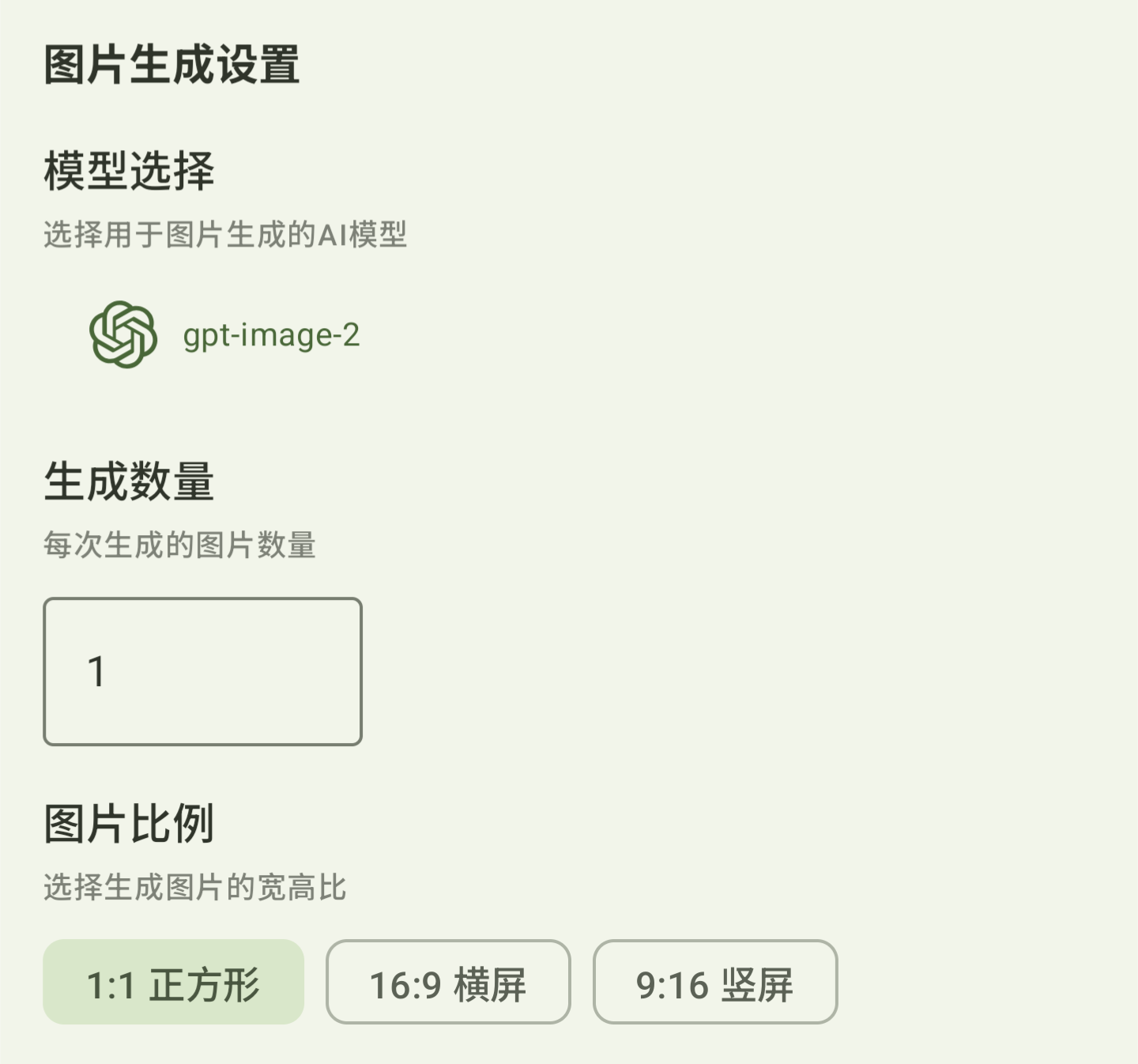
Select the configured model on the image-generation page and start generating images.